This article explains how to save, share and export projects in Magnity, based on the workflow shown in the tutorial video. Use it as a reference for managing complex, multilingual and persona-based campaigns across multiple markets.
1. Saving projects
Creating and naming your project
Before you can save, you need an active project. In the example from the video, the project contains three persona variants (Default, Marketing specialist and CCO) and is then translated into multiple languages (for example German, Korean and Spanish) using the Localise / Translate button.
Once your variants and languages are in place, give your project a clear name, such as “My global campaign”. This makes it easier for you and your colleagues to locate and manage it later.
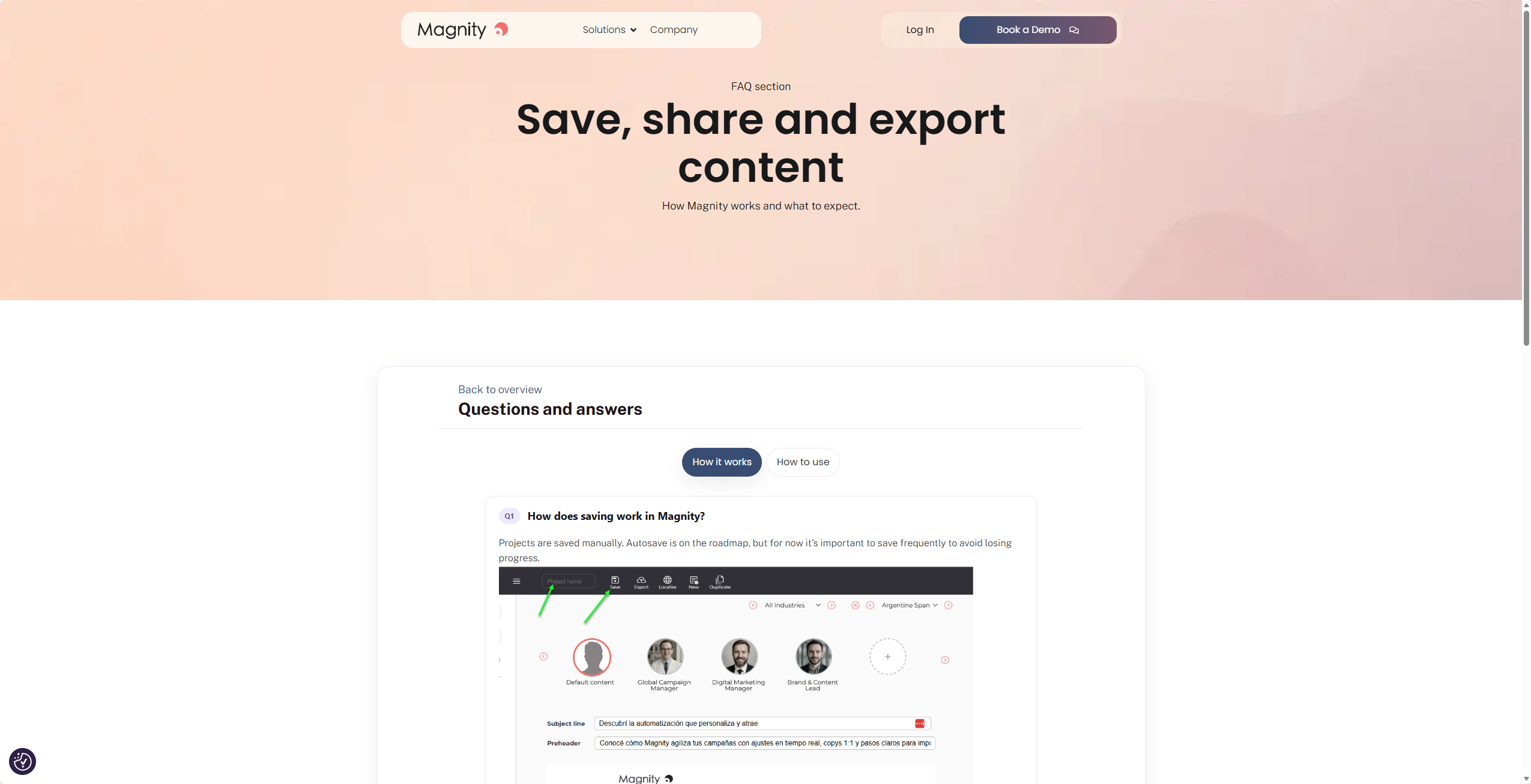
Manual saving (no autosave yet)
At the moment, Magnity requires manual saving of projects:
- Autosave is not yet enabled because of the complexity of handling many users and many variants working in parallel on the same content.
- This means you should save regularly while working to avoid losing changes.
To save:
- Click Save in the editor.
- Confirm that the project name is correct.
- Your changes are now stored in the project.
Finding your saved projects
To reopen a project:
- Go to the Projects folder.
- Sort by “Newest first”.
- Locate your project (for example “My global campaign”).
- Click the project to reopen it and continue where you left off.
This is useful if you have to pause for a meeting or switch tasks and then return later.
2. Sharing projects for local review
When running multi-market campaigns, you often need local teams or language owners to review and adjust content. Magnity supports this with role-based sharing.
Sharing a project with others
From the Projects view:
- Find the relevant project (for example “My global campaign”).
- Click the three dots in the top-right corner of the project tile.
- Select Share project.
- Enter the email address of the colleague you want to collaborate with (for example, the local admin for Germany).
- Press Enter to add the user.
- Choose their role:
- Editor – can edit the project content and save changes.
- Owner – can edit and also share the project further with others.
- Confirm the role when prompted, so you are aware of the implications.
- Click Send.
For most collaboration cases, using Editor as the default role is recommended. Only use Owner if you explicitly want that person to be able to share the project more widely.
What the local user sees
When the local user logs in and goes to Projects:
- They will see the shared project (for example “My global campaign”) in their list.
- When they open it, Magnity:
- Shows the master language so they understand the source version.
- Restricts editable content to the local language or languages they have access to (for example, only German).
The local editor can then:
- Adjust only their assigned language variants, for example improve German phrasing, adapt style, or reduce overly “flowery” expressions.
- Make any necessary edits directly in the project.
- Click Save.
When a local editor saves
- They only save the versions they are working on, such as the German variant (and possibly the master or default if they have permission).
- Other colleagues can simultaneously work on other languages or personas and save those without overwriting each other’s work.
This creates a dynamic, shared workspace where each market or persona owner updates only their relevant versions, while everything stays within one project structure.
3. Exporting projects to your marketing or content platforms
Once all markets and personas have finished their reviews and the content is approved, you can export the project to your downstream systems, such as marketing automation platforms, email tools or CMS environments.
Preparing for export
As the main project owner:
- Log in with the account that owns the full project.
- Go to Projects and open the relevant campaign (for example “My global campaign”).
- Review all feedback and changes from local editors.
- Confirm that every language and persona variant you plan to use is ready.
Exporting to a programme or campaign
To export:
- Open the project in the editor.
- Click Export in the top menu.
- In the export window:
- Either select an existing programme, campaign or folder that you have already created in your connected platform.
- Or create a new programme or campaign, for example by cloning a master setup in your platform and giving it a new name.
- Once a destination is selected, choose which email or content variants to export:
- You can select all variants.
- You can select none (and then choose manually).
- Or you can select specific versions, for example only the personalised versions for each persona and language.
- Tick the versions you want included.
- Click Export.
In a live, connected setup:
- The selected items appear in the chosen programme, campaign or folder in your connected platform.
- They are placed in the correct location.
- They follow the defined naming conventions.
- They are then ready to be used in your existing workflows to reach customers.
In the tutorial, the demo account is not connected to a real production environment, but the behaviour in a live setup follows the description above.
If you want to understand how we handle similar workflows for other campaign types and channels, explore more articles and product guidance on our website.