Chatting with Magnity while you build emails
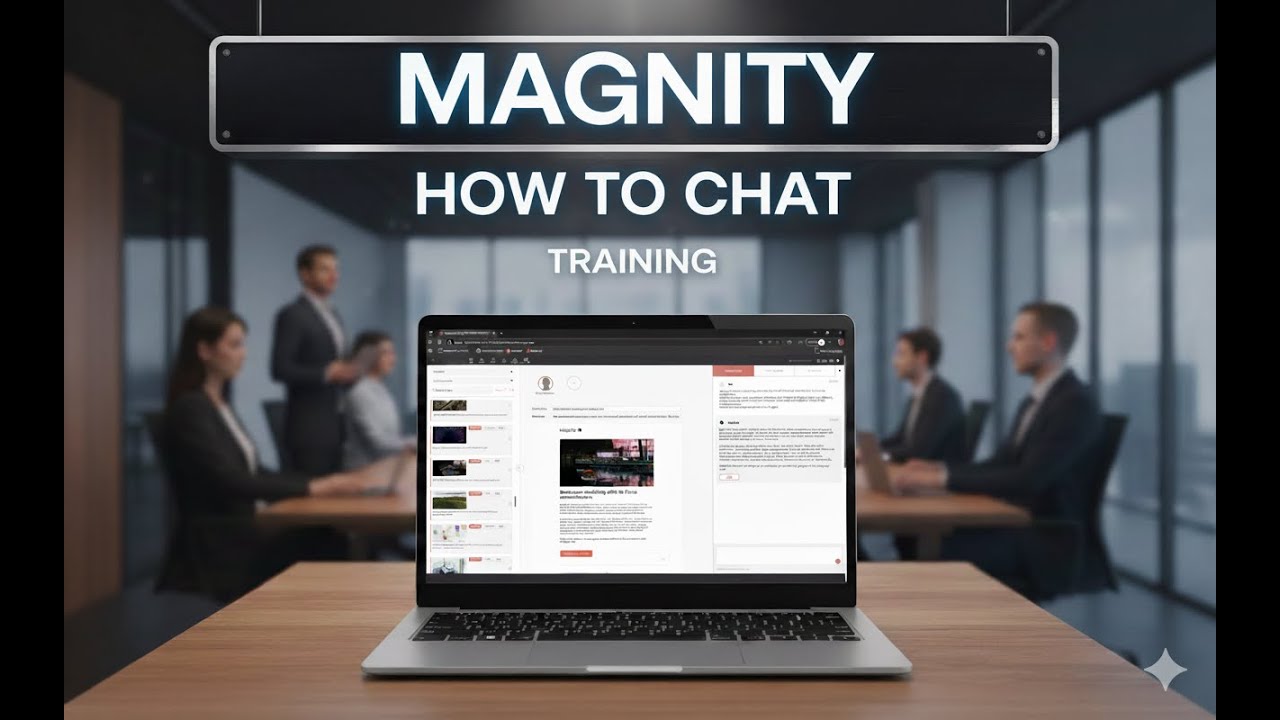
This article explains how to use chat inside the Magnity editor to adjust email copy in real time. It follows the workflow from the tutorial video, so you can use it as a reference when building and refining emails with AI.
1. Starting from a template
Before you can chat with Magnity, you need an email layout in the canvas. In the editor you:
- Choose a template, for example a layout with three content elements.
- Drag and drop the articles or content items you want into those elements.
Magnity then drafts the email content based on the selected sources. When the content is in place, you are ready to work with chat.
2. Identifying elements you can chat with
Every area in the email that contains text can be adjusted via chat. This includes:
- Main body text
- Headlines
- Related article sections
- Other text-based blocks
When you click a text element in the canvas, the right-side chat shows the full conversation history for that specific element, including all previous prompts and AI responses.
3. Making simple copy changes
You can talk to Magnity in natural language, similar to how you would use other AI chat tools. Typical requests include:
- Changing length, for example “Make this three paragraphs” or “Make this around 100 words”.
- Adjusting focus, such as asking to emphasise a specific angle from the source content.
- Refining clarity or structure without rewriting everything from scratch.
Magnity understands which element you are referring to, the source text from your website, and the rules configured for your account.
4. Working with word and character limits
When you click a text element, you can see its current length displayed, for example in characters or words. If you need to meet a specific limit, you can:
- Type a direct instruction in chat, such as “Reduce this to around 100 words”.
- Use a QuickPrompt designed for length control.
As with other AI systems, the word count will be approximate rather than exact, but close enough for most email layouts.
5. Using QuickPrompts to guide the AI
QuickPrompts are pre-written prompts you can apply to any text element to standardise how you brief the AI. They help you:
- Select a communication model, such as AIDA or FAB.
- Change writing style or tone of voice.
- Adjust headline length and style.
- Increase or decrease complexity to make text more readable or more advanced.
- Modify personalisation parameters, for example how strongly copy should address a specific audience.
QuickPrompts give you a repeatable way to steer output without writing long instructions each time.
6. Switching communication models
You can experiment with different communication models on the same element. For example, you can:
- Change from a neutral narrative to the FAB model by applying the relevant QuickPrompt.
- Switch to the AIDA model while keeping the same underlying message.
- Add clarifications such as “Do not add headlines” so the model is applied as continuous body copy.
Magnity applies the requested structure while still respecting the configured rules and the original source material.
7. Controlling headings and structure
When working with models like AIDA or FAB, Magnity may add internal headings by default. You can control this through chat, for example:
- “Remove headlines” to turn a structured version into continuous text.
- “Rewrite using the AIDA model, do not add headlines” to prevent new headings being created.
The system understands these instructions in the context of the current element and adjusts the format accordingly.
8. Reviewing and adjusting source text
At any time you can ask Magnity to show the source text it is using. For example, you can type “Show me source text” in the element chat. This allows you to:
- Review the original website or content copy used as the basis for the email.
- Decide whether to shift focus, update examples or remove outdated parts.
- Guide Magnity to emphasise or de-emphasise specific aspects of the source.
This keeps the link between your content library and the generated email copy transparent.
9. Applying chat-driven refinement in your workflow
In a typical email workflow you might:
- Select a template and drag content into the canvas to create the first draft.
- Click each text element and use chat for basic clean-up such as shortening or clarifying.
- Apply QuickPrompts to test different communication models, tones and complexity levels.
- Ask to see the source text when you need to adjust the angle or ensure alignment with your website.